library(dplyr)
library(readr)
library(ggplot2)Exporting data and results
Save tables, R objects and plots in the right format, in the right place
Write CSV and Excel files, export to SPSS, Stata and SAS transport formats, save R objects with saveRDS() and save(), store data as Parquet, save plots with ggsave(), and keep generated files organised in an output folder.
NoteLearning objectives
By the end of this lesson you will be able to:
- organise generated files in an
output/folder, separate from the raw data; - write data frames to CSV (
write_csv(),write_csv2()) and Excel (writexl,openxlsx); - export to SPSS, Stata and SAS transport files with
haven; - save and restore R objects with
saveRDS()/readRDS()and explain when to prefer them to CSV; - save a ggplot with
ggsave(), controlling size and resolution.
1. Why think about exporting?
At the end of an analysis you have produced something worth keeping: a cleaned dataset, a summary table for a report, a figure for a slide, a fitted model you do not want to re-fit tomorrow. Exporting means choosing:
- where the file goes (a folder),
- what format it has (CSV, Excel,
.rds, PNG, …), - who will read it (a person in Excel, a colleague in SPSS, R itself next week).
The third point decides the second. In this lesson, the code that writes files is shown but not run on the website (eval: false); run it in your own project.
2. Organise your files
A simple project layout keeps raw data safe and generated files easy to find:
my-project/
├── my-project.Rproj      (or a .here file)
├── data/                 raw data: never modified by code
├── R/ or scripts/        your .R or .qmd files
└── output/               everything the code creates (tables, figures, .rds)
Two rules make this work:
- Raw data are read-only. Scripts read from
data/and write tooutput/. If something goes wrong you can deleteoutput/and re-run everything. - Paths are project-relative, built with
here::here()(see Importing data).
Create the output folder from code, so the script works on a fresh copy of the project:
dir.create(here::here("output"), showWarnings = FALSE)showWarnings = FALSE avoids a warning when the folder already exists. Give files informative names (mpg_by_gear.csv, not table1_final_v3.csv), in lower case and without spaces.
3. A table to export
We export a small summary of mtcars: the average fuel consumption and displacement by number of gears.
by_gear <- mtcars |>
  summarise(
    n         = n(),
    mean_mpg  = mean(mpg),
    mean_disp = mean(disp),
    .by = gear
  ) |>
  arrange(gear)

by_gear
#> gear n mean_mpg mean_disp
#> 1 3 15 16.11 326.3
#> 2 4 12 24.53 123.0
#> 3 5 5 21.38 202.54. CSV files
CSV is the most portable format: any program can read it, and it is plain text, so it works well with version control. Its limits: it stores no types (a factor becomes text, a date becomes a string) and only one table per file.
readr::write_csv() and write_csv2()
write_csv(by_gear, here::here("output", "mpg_by_gear.csv"))

# semicolon separator and decimal comma (Excel in many European locales)
write_csv2(by_gear, here::here("output", "mpg_by_gear_eu.csv"))
write_csv() never writes row names, always uses UTF-8 encoding and writes missing values as NA (use na = "" for empty cells). If the file is meant to be opened by double-clicking in Excel and contains accented letters, write_excel_csv() adds a marker that tells Excel the file is UTF-8.
Base R: write.csv() and write.csv2()
write.csv(by_gear, here::here("output", "mpg_by_gear.csv"), row.names = FALSE)
write.csv2(by_gear, here::here("output", "mpg_by_gear_eu.csv"),
           row.names = FALSE)
Without row.names = FALSE, base R adds a first column of row numbers (or row names) — the unnamed first column you met when importing mtcars.csv. Without a file name, write.csv() prints to the console, which is a quick way to see what would be written:
write.csv(head(by_gear, 2), row.names = FALSE)#> "gear","n","mean_mpg","mean_disp"
#> 3,15,16.1066666666667,326.3
#> 4,12,24.5333333333333,123.0166666666675. Excel files
Quick: writexl::write_xlsx()
writexl has no dependencies (no Java, no Excel needed) and does one thing: write data frames to .xlsx. A named list of data frames becomes a workbook with one sheet per element:
writexl::write_xlsx(by_gear, here::here("output", "mpg_by_gear.xlsx"))

writexl::write_xlsx(
  list(summary_by_gear = by_gear, raw_data = mtcars),
  here::here("output", "mtcars_export.xlsx")
)
With formatting: openxlsx
When the workbook is a deliverable (bold headers, column widths, frozen first row), use openxlsx. You build a workbook object step by step and save it at the end:
wb <- openxlsx::createWorkbook()
openxlsx::addWorksheet(wb, "summary")
openxlsx::writeData(wb, "summary", by_gear,
                    headerStyle = openxlsx::createStyle(textDecoration = "bold"))
openxlsx::setColWidths(wb, "summary", cols = 1:4, widths = "auto")
openxlsx::freezePane(wb, "summary", firstRow = TRUE)
openxlsx::saveWorkbook(wb, here::here("output", "mpg_by_gear_formatted.xlsx"),
                       overwrite = TRUE)
For a single data frame without formatting, openxlsx::write.xlsx(by_gear, file, overwrite = TRUE) is a one-line alternative. (openxlsx2 is a newer, actively developed successor with a similar purpose and a pipe-friendly interface; the older xlsx package requires Java and is best avoided.)
TipExcel is for people, not for pipelines
Export to Excel when a person needs to look at the numbers. If the file will be read again by code, CSV, .rds or Parquet are safer: Excel may silently convert values (gene names such as SEPT2 into dates, long IDs into rounded numbers) when someone opens and re-saves the file.
6. SPSS, Stata and SAS
haven writes the native formats of SPSS and Stata, and the SAS transport format:
haven::write_sav(by_gear, here::here("output", "mpg_by_gear.sav"))    # SPSS
haven::write_dta(by_gear, here::here("output", "mpg_by_gear.dta"))    # Stata
haven::write_xpt(by_gear, here::here("output", "mpg_by_gear.xpt")) # SAS- Factors are written as labelled integer codes, so SPSS and Stata users see both the codes and the category names.
- Variable names must respect the rules of the target software (for example, Stata names cannot contain dots and are at most 32 characters).
janitor::clean_names()usually takes care of this. - For SAS, use
write_xpt(), which writes a SAS transport (XPORT) file that SAS reads reliably (it is also the format required by some regulatory agencies).haven::write_sas()(native.sas7bdat) is deprecated and its files may not open correctly in SAS.
7. R’s own formats: .rds and .RData
saveRDS() / readRDS(): one object, exactly as it is
An .rds file stores any single R object — a data frame, a list, a fitted model — with all its types and attributes:
saveRDS(by_gear, here::here("output", "by_gear.rds"))

gear_table <- readRDS(here::here("output", "by_gear.rds"))  # any name you like
Why does this matter? A CSV round trip loses types. Here we write to a temporary file (which R deletes at the end of the session), so the demonstration does not touch any project folder:
peng <- penguins[1:5, c("species", "island", "body_mass")]

tmp_csv <- tempfile(fileext = ".csv")
tmp_rds <- tempfile(fileext = ".rds")
write.csv(peng, tmp_csv, row.names = FALSE)
saveRDS(peng, tmp_rds)

from_csv <- read.csv(tmp_csv)
from_rds <- readRDS(tmp_rds)

class(from_csv$species)          # text: the factor levels are gone
#> [1] "character"class(from_rds$species) # still a factor#> [1] "factor"identical(from_rds, peng) # exactly the same object#> [1] TRUE
TipHow to read this output
After the CSV round trip, species is character: the information that it is a factor with levels Adelie, Chinstrap, Gentoo (in that order, including levels that do not appear in these five rows) is lost. The .rds copy is identical() to the original. Use .rds for intermediate results between your own scripts; use CSV to share data with other programs.
save() / load(): several objects at once
model <- lm(mpg ~ wt, data = mtcars)
save(by_gear, model, file = here::here("output", "analysis.RData"))

load(here::here("output", "analysis.RData"))   # re-creates by_gear and model
load() re-creates the objects with their original names, silently overwriting any object with the same name in your workspace. For this reason saveRDS() is usually preferred: you choose the name when reading. (A list of objects can also be saved with saveRDS(list(a = a, b = b), ...).)
8. Parquet: typed, compact, for any language (optional)
Parquet is a column-oriented file format used by data tools in R, Python, Spark and databases. It keeps column types (like .rds), compresses well, and can be read by many programs (unlike .rds). The arrow package reads and writes it:
arrow::write_parquet(penguins, here::here("output", "penguins.parquet"))
penguins_pq <- arrow::read_parquet(here::here("output", "penguins.parquet"))
It is worth considering when files are large (millions of rows) or shared with Python users.
9. Saving plots with ggsave()
ggsave() writes a ggplot to a file; the format follows the file extension (.png, .pdf, .svg, .jpg, …).
p <- ggplot(penguins, aes(flipper_len, body_mass, colour = species)) +
  geom_point(alpha = 0.7, na.rm = TRUE) +
  labs(x = "Flipper length (mm)", y = "Body mass (g)", colour = "Species")
p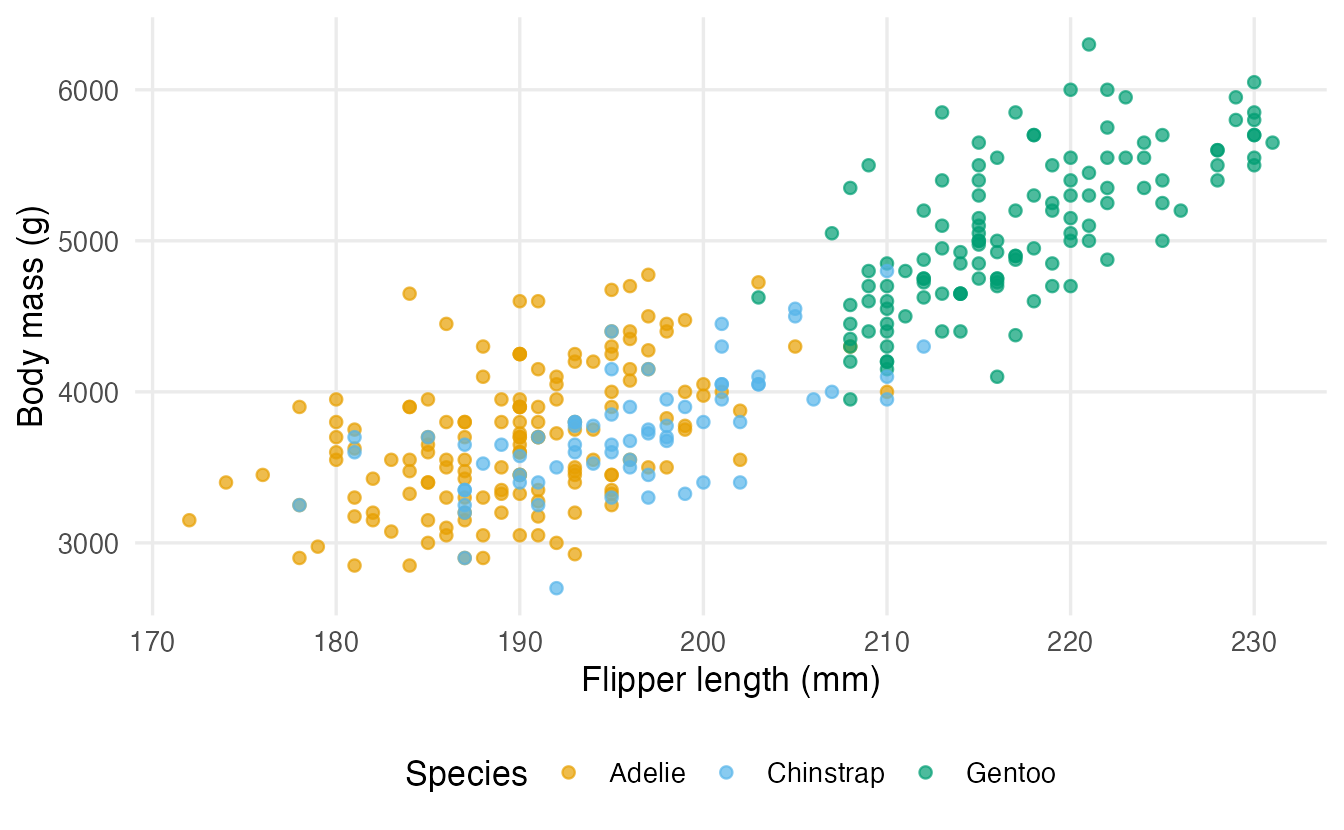
ggsave(
  filename = here::here("output", "mass_vs_flipper.png"),
  plot   = p,            # say which plot: do not rely on "the last one shown"
  width  = 16,
  height = 10,
  units  = "cm",
  dpi    = 300           # 300 dots per inch: good for print
)

ggsave(here::here("output", "mass_vs_flipper.pdf"), plot = p,
width = 16, height = 10, units = "cm")- Always pass
plot =explicitly. Without it,ggsave()saves the last plot displayed, which in a long script may not be the one you mean. - Set the size (
width,height,units). Otherwise the size of your current plotting window is used, and the result changes from one computer to another. - PNG (raster) with
dpi = 300is right for documents and slides; PDF/SVG (vector) stay sharp at any zoom and are preferred by many journals. - Text size in the saved file depends on the physical size: a 30 cm wide plot has relatively smaller text than a 12 cm one. Choose the size you will actually use.
For base-R graphics, open a device, draw, and close it: png(file, width = 1600, height = 1000, res = 200), then the plotting code, then dev.off().
WarningCommon pitfalls
- Overwriting the raw data. Never write to
data/. Write tooutput/so the original stays untouched. - An extra column of row numbers. Base
write.csv()needsrow.names = FALSE;readr::write_csv()never writes them. - Expecting CSV to remember types. Factors, dates and labelled values become plain text or numbers. Use
.rds(R only) or Parquet for typed data. load()overwriting objects silently. PrefersaveRDS()+x <- readRDS().ggsave()withoutplot =and without a size. You may save the wrong plot at an unpredictable size.- Absolute paths in export code (
"C:/Users/…/Desktop/out.csv"). Usehere::here("output", "out.csv").
10. Check your understanding
11. Exercises
Interactive (run in your browser)
In the browser R runs in a sandbox, so files written to tempfile() are safe to create and read back.
★ Exercise 1 — predict the output. Without running it, predict how many columns the CSV text below has, and what the first line looks like. Then run it and compare with the version that uses row.names = FALSE.
mtcars has row names (the car models). By default write.csv() writes them as an unnamed first column.
write.csv(small)                     # 3 columns: "", "mpg", "cyl"
write.csv(small, row.names = FALSE)  # 2 columns: "mpg", "cyl"
The first version starts with "","mpg","cyl" and the car names in the first column. Here the car names are real information, so if you drop row names, first turn them into a proper column: small$model <- rownames(small).
★★ Exercise 2 — a round trip that loses information. Save chickwts (where feed is a factor) to a temporary CSV file and to a temporary .rds file, read both back, and compare the levels of feed.
Use saveRDS() to write and readRDS() to read.
saveRDS(chickwts, tmp_rds)
from_rds <- readRDS(tmp_rds)
class(from_csv$feed)       # "character"
levels(from_rds$feed)      # the six feed types, in their original order
identical(from_rds, chickwts)   # TRUE
You could turn from_csv$feed back into a factor, but you would have to know (and retype) the level order. The .rds file keeps it for you.
★★ Exercise 3 — a European CSV. Write the mean len by supp and dose of ToothGrowth to the console in the “European” CSV format (semicolons and decimal commas). Use aggregate() to compute the table.
The base function for this format is write.csv2().
tg <- aggregate(len ~ supp + dose, data = ToothGrowth, FUN = mean)
write.csv2(tg, row.names = FALSE)
Each line looks like "OJ";0,5;13,23: ; separates values and , is the decimal mark. With readr loaded, write_csv2() does the same.
Practice on your own computer
★★ Exercise 4 — a small report folder. In a project of your own: create output/, compute the mean body mass by species and sex of penguins (dropping missing values), and save (a) the table as CSV and as an Excel file with one sheet for the table and one for the raw data, and (b) a boxplot of body mass by species as a 15 × 10 cm PNG at 300 dpi.
TipSolution
library(dplyr)
library(readr)
library(ggplot2)

dir.create(here::here("output"), showWarnings = FALSE)

mass_tab <- penguins |>
  filter(!is.na(sex), !is.na(body_mass)) |>
  summarise(mean_mass = mean(body_mass), n = n(), .by = c(species, sex))

write_csv(mass_tab, here::here("output", "mass_by_species_sex.csv"))
writexl::write_xlsx(
  list(summary = mass_tab, raw = penguins),
  here::here("output", "penguins_mass.xlsx")
)

p <- ggplot(penguins, aes(species, body_mass)) +
  geom_boxplot(na.rm = TRUE) +
  labs(x = NULL, y = "Body mass (g)")
ggsave(here::here("output", "mass_boxplot.png"), plot = p,
       width = 15, height = 10, units = "cm", dpi = 300)
Delete the output/ folder and re-run the script: everything is re-created. That is the test of a reproducible workflow.
★★★ Exercise 5 — to SPSS and back. Write penguins to an SPSS file with haven::write_sav(), read it back with read_sav(), and compare the class of species before and after. Convert it back to a factor and check that the levels are the same as in the original.
TipSolution
library(haven)
path <- here::here("output", "penguins.sav")
write_sav(penguins, path)
back <- read_sav(path)

class(penguins$species)   # "factor"
class(back$species)       # "haven_labelled" ...: codes 1, 2, 3 with labels

back$species <- as_factor(back$species)
identical(levels(back$species), levels(penguins$species))   # TRUE
SPSS has no factor type: it stores numbers with value labels. as_factor() rebuilds the factor from those labels.
Summary
| Goal | Function | Notes |
|---|---|---|
| Output folder | dir.create(here::here("output"), showWarnings = FALSE) |
never write into data/ |
| CSV | readr::write_csv(), write.csv(row.names = FALSE) |
portable, no types |
| CSV for European Excel | readr::write_csv2(), write.csv2() |
; and decimal comma |
| Excel, quick | writexl::write_xlsx(df_or_named_list, path) |
one sheet per list element |
| Excel, formatted | openxlsx::createWorkbook() … saveWorkbook() |
styles, widths, frozen panes |
| SPSS / Stata / SAS | haven::write_sav(), write_dta(), write_xpt() |
write_sas() is deprecated |
| One R object | saveRDS() / readRDS() |
keeps all types |
| Several R objects | save() / load() |
load() can overwrite objects |
| Large typed data, any language | arrow::write_parquet() |
optional |
| Plots | ggsave(file, plot = p, width, height, units, dpi) |
always set plot and size |
- Keep raw data read-only and write everything to
output/with project-relative paths. - Choose the format by who reads it next: people (Excel, CSV), other software (CSV, SPSS/Stata/XPT, Parquet), R (
.rds). - CSV is portable but forgets types;
.rdsremembers everything. - Save plots with an explicit plot and size.